
By midday the battery bar has slid worryingly low, the back of the handset feels faintly warm, and you have barely opened anything all morning. Something has been busy while you were not looking. Android quietly keeps score of that hidden work, if you know where to look. A short audit usually reveals a small cast of repeat offenders rather than a phone wide problem.
The good habit here is to investigate before restricting anything. Android offers several levels of background control, and the brands layer their own tools on top, so the settings can look like a maze. Worked through in order, though, the picture simplifies: find the apps doing the hidden work, choose how firmly each one should be held back, protect the apps whose background work you genuinely depend on, and leave the rest to the system own good judgement.
Finding the Apps That Refuse to Rest
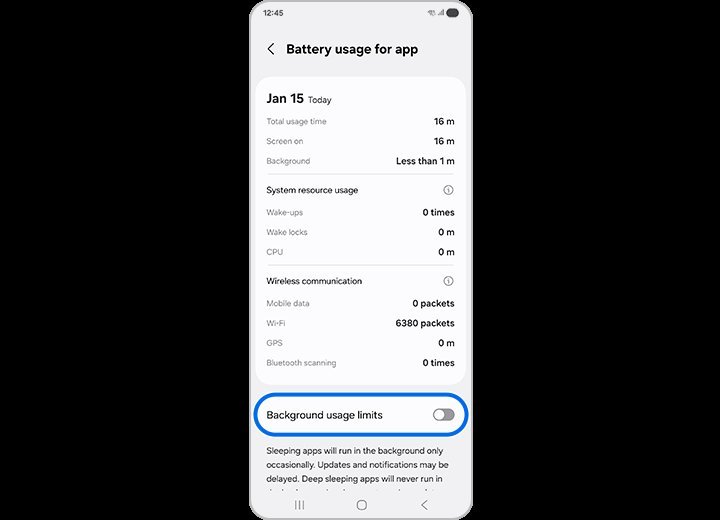
Start where Android keeps its score. The battery section of the settings shows which apps have used the most power since the last full charge, and tapping into an app reveals how much of that use happened while it sat in the background. The pattern to hunt for is a mismatch: an app you opened twice quietly consuming like one you used all day, or background time that dwarfs the minutes the app was ever on screen. Those are the candidates for firmer control.
Before judging any app, give it a fair chance to behave. Freshly updated apps are less likely to misbehave in the background, so a single update pass belongs in any audit of draining apps, and learning to update all your apps at once clears that chore in one visit to the store rather than app by app. An app stuck on an old version can carry a bug that its maker fixed long ago, and restricting it would punish the app for your own postponed update.
Then watch behaviour across a couple of ordinary days rather than reacting to one strange morning. Travel, weak signal and a long call can all make honest apps look greedy for a day. Repeat offenders reveal themselves by appearing near the top of the list again and again, especially on quiet days when the phone mostly sat in a pocket. Note also any app that keeps the handset warm while untouched, since warmth is wasted energy announcing itself.
Resist the urge to install a task killer at this point. Android developer material explains that the system already pauses idle apps through built in optimisation, which is why separate task killer tools tend to restart the very processes they close, spending more power on the reopening than the app would have used sitting quietly. The audit needs observation, not interference, and the controls described next are stronger than any killer because they work with the system rather than against it.
Signal deserves a mention in any honest audit, because a handset working hard to hold a weak connection spends power freely, and the apps using that connection inherit the blame. If the battery list looks worst on days spent in a low signal building or travelling, the pattern may belong to the location rather than to any single app. Note the context beside the culprit before deciding, since restricting an app for the crime of being used in a basement is a misdiagnosis that fixes nothing.
Three Levels of Background Control Compared
Every app on a modern Android handset carries its own battery setting with three choices. The Android Help guidance on limiting background battery use describes those choices as unrestricted, optimised and restricted, and explains that restricted apps are held back from background work until opened. That single sentence contains the whole ladder: the same app can be trusted completely, managed by the system, or benched until you call on it.
Unrestricted is the open door. The app may work in the background whenever it wishes, syncing, fetching and preparing things ahead of your taps. It is the right setting for a small number of apps whose timing genuinely matters, and the wrong default for everything else, because each unrestricted app is a standing invitation to spend power on work you may never notice or need.
Optimised is the system judgement call, and it is where most apps belong. Android watches how you use each app and pauses the idle ones, letting regulars run more freely and benchwarmers rest. It adapts without your attention, which is why a phone left entirely on optimised usually behaves well. Its weakness is patience: it learns over days, and a freshly misbehaving app can drain for a while before the system tightens its leash.
Restricted is the firm hand. A restricted app is held back from background work until you open it, so it cannot quietly refresh, sync or wake the phone while it sits unused. The trade off is that its notifications and updates may wait until your next visit. That makes restricted ideal for the repeat offenders from your audit, the apps you want available on demand but never active on their own initiative, and a poor fit for anything time sensitive.
How Samsung and Pixel Handle Rest Limits Differently
On top of the standard ladder, brands add their own furniture, and menu names vary between brands rather than matching everywhere. The Samsung Support guidance on sleeping and deep sleeping apps explains that Galaxy handsets add sleeping and deep sleeping lists, where deep sleeping apps stay dormant until launched by hand. Sleeping apps may still stir occasionally, while the deep sleeping list is the stricter bench, close in spirit to the restricted setting but managed as a list in one place.
The Samsung arrangement suits owners who think in groups. Rather than visiting each app page separately, you can sweep a batch of rarely used apps into deep sleep at once and review the list whenever you install something new. The handset may also suggest candidates based on how long they have sat unused, which turns the audit into a prompt instead of a chore. The caution is the same as ever: anything swept into deep sleep will not call for your attention until you open it.
Pixel handsets take the quieter road, leaning on the standard Android choices and the built in optimisation that learns your habits. There is less to configure and less to browse, which many owners prefer, but it also means the setting governing each app individually becomes the main lever when one app misbehaves. On either brand, the principle survives the different menus: find the offender, choose the firmest setting that does not break something you rely on, and let the system handle the long tail of ordinary apps.
Protecting Messages, Alarms, and Health Reminders
Every audit needs a protected list, and it should be written before any restricting begins. Messaging apps belong on it, because a restricted messenger cannot receive in the background, and messages that arrive only when you happen to open the app are a failure disguised as a saving. The same applies to the apps behind calls and video chats, whose whole purpose is to reach you at moments you did not schedule.
Alarms and clock functions are the second protected family. A wake up alarm, a timer or a calendar alert that sleeps through its own moment is worse than any battery saving it bought. Health reminders stand beside them: medication prompts, appointment nudges and tracking apps that must notice things in the background to be of any use. Restricting those trades a little power for a missed dose or a lost record, which is a bad bargain at any battery level.
System services deserve the same hands off treatment, and happily Android guards many of them from casual changes. Where a setting is greyed out or a warning appears, treat it as the phone telling you the app carries a load bearing job. The protected list also includes whatever your work or family safety depends on, from a school app that announces closures to a tracker that shares a child location. Battery saved by silencing those is battery bought far too dearly.
Notifications merit a moment of attention here, because owners often restrict an app for draining and then blame the setting when messages go quiet. That silence is the setting working as designed, not a new fault. The protected list exists precisely to decide in advance which silences you can accept and which you cannot, so the choice is made calmly at the kitchen table rather than discovered angrily when an important message surfaces hours late.
Limits Worth Setting and Habits Worth Dropping
The recommendation that emerges from the comparison is layered. Leave most apps on optimised, since the system judgement is genuinely good and improves as it learns. Move the proven repeat offenders, the ones your audit caught draining across several quiet days, to restricted, or into deep sleep on a Galaxy handset. Reserve unrestricted for the short protected list whose background work is the point of the app, and review that list whenever you install something new that asks for freedom.
Two habits are worth dropping outright. The first is the task killer ritual, which restarts the processes it closes and spends power on the churn. The second is restricting in anger after one bad morning, which silences innocent apps and teaches you nothing about the real cause. A couple of days of observation, one update pass, and a handful of deliberate restrictions will out perform weeks of both habits.
Expect improvement to arrive as steadiness rather than a miracle. No setting here promises a set battery gain, because every handset carries a different mix of apps, signal and habits. What the audit does promise is an end to the mystery: the bar that slid by midday will have named culprits, chosen limits and protected essentials, and the warmth on the back of the handset will belong to work you actually asked for.
Revisit the whole audit once in a while, perhaps when the seasons change or after a large system update. New apps arrive, old ones change their behaviour, and a former offender may have reformed while a trusted regular quietly grows greedy. Ten calm minutes with the battery list, the protected list beside you, keeps the balance you built from drifting. Battery care is not a single rescue but a light, repeating housekeeping habit, and the handset rewards it with days that end with something still in reserve.



One comment