
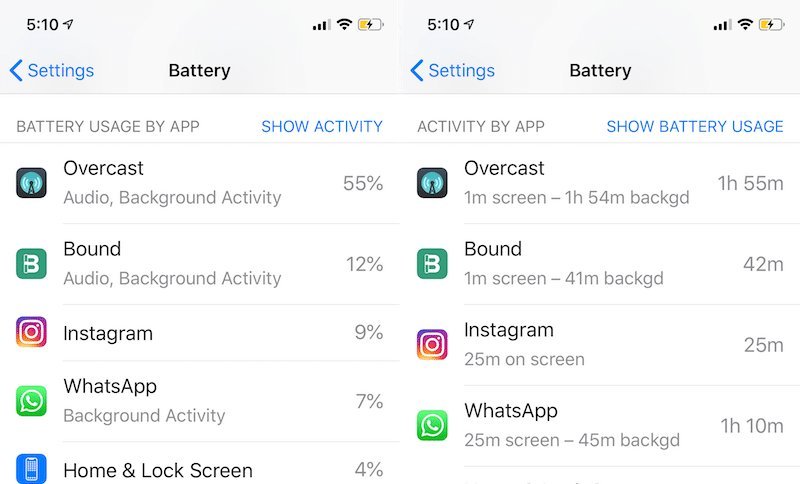
Morning started with a nearly full charge, yet by mid afternoon the percentage has fallen far faster than your actual use can explain. Guesswork is tempting, but your handset has been keeping receipts the entire time. Buried in settings sits a ranked account of every app and the power it consumed. Reading that account properly turns a vague worry into a named suspect.
Every fix for a draining phone carries a price, and the price is rarely money. Limiting an app can mean slower alerts; dimming a screen can mean squinting in sunlight; turning features off can mean losing something you quietly relied on. So each candidate fix deserves an honest weighing: what it gains in hours, set against what it costs in convenience. This piece works through that weighing in the order a careful owner should act, starting with the evidence and ending with the verdict.
Opening the Battery Report Your iPhone Already Keeps
The first move costs nothing and changes nothing: open the battery section in settings and read what the phone has recorded. Apple support guidance explains that this screen ranks apps by their share of power used over a recent period, turning a suspicion into a list. A heavy share beside an app you barely remember opening is a clue worth following, while a heavy share beside the game you played for an hour on a train is simply an honest receipt.
The gain from starting here is precision. Instead of punishing every app for one app’s appetite, you learn which few names actually account for the missing charge. The cost is a few patient minutes and the discipline not to act on the ranking immediately, because the ranking alone does not say why an app drank so deeply. A name at the top is a suspect, not a verdict, and treating it as a verdict is how useful apps get deleted while the real cause keeps drinking.
Look at the pattern across more than one stretch of time before judging. A single strange day, heavy with travel or calls, can put an innocent app at the top. Repeated appearances across ordinary days mean far more. The report rewards readers who compare it against their own memory of the day: what were you doing, where were you, and does the ranking match that story? Where the ranking and the story disagree, the disagreement itself is the lead worth chasing.
Screen Time Versus Background Time
The most useful detail in the report is the split between activity on screen and activity in the background. Apple guidance notes that the battery screen can reveal this split for each app, and it changes everything about how a ranking should be read. An app whose consumption happened mostly while you were looking at it is an app you used; an app whose consumption happened mostly while the phone sat untouched is an app working behind your back.
Weigh the two patterns differently. Heavy on screen use argues for moderation or acceptance: the app earned its share by serving you, and trimming it means trimming something you enjoy or need. Heavy background use argues for intervention, because the drain bought you nothing you noticed. Yet even here, caution matters. A mail or messaging app working in the background may be fetching exactly what you expect it to fetch, and a high share beside a light day can make a small absolute amount look dramatic in percentage terms.
The honest test is proportionality. Compare the background hours against the value you received: timely messages, synced photographs, a podcast ready when you wanted it. Where the value is real, the cost may be worth paying and the app deserves to stay as it is. Where an app has been busy for hours in the background and you cannot name a single thing it did for you, the weighing is already settled. That app is where the fixes set out below begin.
There is a subtler pattern worth learning to see: the app whose background time is long but whose share stays small. Length alone is not guilt. Some apps sip steadily for hours, checking, syncing, and waiting, yet spend so little each hour that their total barely registers beside one heavy game. Owners who punish by hours rather than by share end up restricting their most faithful servants while the true drinker, busy for twenty visible minutes, escapes notice entirely. Read both columns together, hours and share, and let their combination name the suspect.
Taming a Greedy App Without Breaking Its Useful Side
Apple guidance notes that background refresh and location access can be limited app by app, and those two levers are the kindest fixes available. Switching off background refresh for a greedy app gains back its silent hours while keeping the app fully itself whenever you open it; the cost is that content waits to load at the moment you arrive rather than sitting ready. For shopping, news, and casual apps, that cost is barely noticeable. For messaging and mail, it can mean delayed alerts, which may be a price too high for the charge it saves.
Location deserves the same weighing. An app that tracks you constantly to serve a feature you use monthly is spending your battery on its curiosity. Limiting it to access only while in use keeps the feature alive for the moments you actually open the app, and the loss is usually nothing at all. Navigation and fitness apps are the honest exceptions: they genuinely need the access they ask for, and restricting them breaks the very job you installed them to do.
Every heavyweight app deserves this same gain versus cost weighing, and readers judging a fashionable app category can watch that weighing done openly in the discussion of ai note taking apps and whether note taking apps are worth using before deciding what earns a place on the phone. The habit transfers: name what an app gives, name what it takes, and keep only the ones whose exchange favours you. Deleting outright remains the last resort, reserved for apps whose useful side you cannot name at all.
Signals From Signal Strength, Heat, and Wear
Sometimes the report points away from apps entirely. If the drain spreads evenly across everything, or strikes hardest on days spent in certain places, suspect the connection rather than the software. Advice published by Apple adds that weak cellular coverage can raise power draw because the handset works harder to hold a connection, and a day spent at the edge of coverage can cost more charge than any single app on the list. The fix there is environmental, not surgical: no app setting repays a radio that strained all day.
The maximising battery performance guidance from Apple is credited by many owners as the clearest statement of how coverage and temperature bear on power draw, noting that a handset working hard for a signal, or sitting in heat, spends charge faster than the same handset in kind conditions. Heat deserves respect in both directions: a phone that grows warm during ordinary use is telling you work is happening somewhere, and a phone left baking in a car ages its battery while doing nothing at all.
Wear is the third signal, and the battery health settings report it directly as the share of the original capacity that still remains. Read that figure as context, not as a final judgement standing alone. A battery that has lost some capacity will simply make every other drain feel larger, because the same app now drinks from a smaller cup. No single capacity figure should be treated as a universal replacement rule; the figure matters alongside how the phone behaves in your hands, not instead of that evidence.
An overnight test separates these signals neatly. Charge the phone before bed, leave it unplugged and untouched, and compare the morning percentage with the evening one across a couple of nights. A small overnight fall is ordinary housekeeping. A large one, repeated in a place with strong coverage, says something worked hard while you slept, and the report will usually name it. A large fall only on nights spent somewhere with poor signal says the radio strained instead, and no app deserves the blame. Heat leaves its own overnight clue as well: a phone found warm in the morning has been labouring, while a cool phone that lost charge points more toward a battery that no longer holds what it promises. Simple tests, honestly compared, do the work that anxious guessing never does.
Weighing the Fixes Before You Change Anything
Now the weighing can be done in earnest, in the order that wastes nothing. Evidence first: read the report, split screen time from background time, and note the days when coverage or heat explain the fall better than software does. Then act on the clearest imbalance, the app whose background work buys you nothing, using the gentle levers of refresh and location limits before considering deletion. Change one thing, live with it for a couple of ordinary days, and read the report again.
The Wikipedia entry on lithium ion batteries gives a useful account of how these batteries age, gradually holding less charge as the years and cycles accumulate, which is why wear changes the verdict on everything else. Against a worn battery, even perfect settings can only slow the fall; against a healthy one, settings work is usually enough. Knowing which situation you are in prevents both errors: replacing a sound battery out of frustration, and endlessly tuning a phone whose cell is simply tired.
The verdict, then, is an order of operations rather than a single trick. Read before you change. Weigh each fix by what it gains against what it costs in alerts, readiness, and convenience. Spend your changes on background waste first, forgive honest on screen use, respect the role of coverage and heat, and let the health reading tell you when the problem has stopped being about settings at all. Followed calmly, that order turns a mysterious drain into either a solved problem or an honest diagnosis, and both are better than another afternoon of guesswork.



One comment