If you use ChatGPT regularly, you have a prompt you have typed forty times. The one that reformats your meeting notes. The one that turns product specs into listing descriptions in your store’s voice. The one that quizzes your kid on spelling words. Every time, you retype the same instructions, re-explain the same rules, and re-upload the same reference file — and then the model still forgets half of it by the third message.
A custom GPT exists to end that loop. It is a version of ChatGPT with your instructions, your reference files, and your preferences baked in permanently, so you open it, drop in the raw material, and get the finished output. Building one takes about fifteen minutes and requires no code. This guide walks through the process using the kind of repetitive task almost everyone has.
Quick Answer
To build a custom GPT, open the GPT builder in ChatGPT (a paid plan is required to create one), describe the single repetitive task it should perform, and write clear instructions covering its role, the exact steps to follow, the output format, and what to avoid. Upload any reference files it needs — templates, price lists, style guides — under Knowledge, test it in the preview pane with real examples, fix what it gets wrong by editing the instructions, and save it for your own private use. A good custom GPT does one task predictably, not twenty tasks unpredictably.
Step 1: Pick the Right Task
The best first custom GPT automates something with three traits:
- You do it at least weekly, so the setup time pays back fast
- The instructions are always roughly the same — same format, same rules, same tone
- The output has a checkable shape, so you can tell immediately whether it worked
Strong candidates: turning call notes into follow-up emails, converting recipes to a standard format with scaled servings, drafting social posts from a blog link in your brand voice, generating practice quizzes from a textbook chapter, reformatting invoices, or summarizing weekly reports from the same spreadsheet. Weak candidates: anything one-off, anything requiring live information the model cannot access, and anything where an error would be costly and hard to spot — a custom GPT is a productivity tool, not an autopilot for legal or financial decisions.
Write your task down in one sentence before opening the builder: “This GPT turns my rough call notes into a follow-up email and a three-line CRM summary.” If you cannot write that sentence, you are not ready to build.
Step 2: Build It — Conversation or Configure
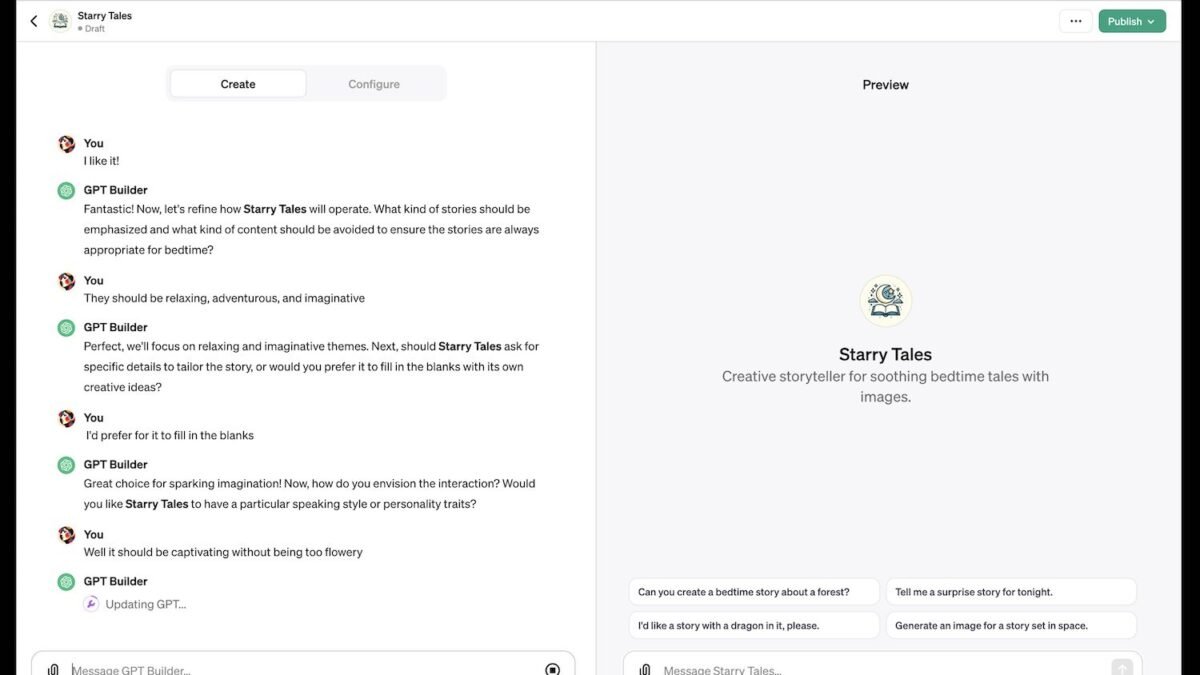
Open ChatGPT, go to Explore GPTs, and choose Create. You get two tabs. The Create tab interviews you — describe your task in plain language and it drafts the GPT, including a name and icon. The Configure tab is the control panel underneath: name, description, instructions, conversation starters, knowledge files, and capabilities like web browsing or image generation.
Use the Create tab for a fast first draft if you like, but plan to spend your real time in Configure, because the Instructions field is where quality lives. That field holds up to 8,000 characters, and it should contain:
- Role: “You are an operations assistant for a small landscaping company.”
- Task steps, numbered: exactly what to do with the input, in order
- Output format: sections, headings, length limits — show a short example of a perfect output if you can
- Rules and refusals: “Never invent a price. If the notes do not mention a date, write [DATE NEEDED] instead of guessing.”
- Tone: “Direct and friendly. No marketing language.”
That “never invent” rule deserves emphasis. General ChatGPT fills gaps helpfully; your custom GPT should be trained to leave a visible placeholder instead. In a work document, a bracketed gap you can spot beats a confident fabrication every time. OpenAI’s own introduction to GPTs explains the building blocks — instructions, knowledge, and actions — if you want the platform-level overview before you start.
Step 3: Add Knowledge Files and Starters
The Knowledge section lets you upload up to 20 files the GPT can search while answering: your price list, your return policy, last year’s report template, the employee handbook, a PDF of your course material. This is what separates a genuinely useful custom GPT from a saved prompt — it works from your documents instead of generic knowledge. Keep files clean and current; an outdated price list uploaded once will be quoted confidently for months.
Conversation starters are the clickable prompts on the GPT’s home screen. Set them to the exact first messages you would otherwise type: “Convert this week’s call notes” or “Make a quiz from this chapter.” They save more time than they appear to, because they remove the blank-page moment entirely.
Under Capabilities, enable only what the task needs. Web browsing helps a research assistant and hurts nothing, but a notes formatter does not need image generation, and leaving extras on adds unpredictability. If your task involves generating home images or visuals, the safety considerations in our guide to using AI image generators safely at home are worth reading before you switch that capability on for a shared GPT.
Step 4: Test With Real Examples and Iterate
The builder’s preview pane is where the GPT becomes good. Run your three most typical real inputs through it — not tidy samples, but the messy ones you actually produce. Then look for the recurring failures and fix them in the instructions:
- Output too long? Add a hard limit: “The summary must be under 80 words.”
- Wrong tone? Name the fix: “Remove exclamation points. Address the customer by first name.”
- A step keeps getting skipped? Move it earlier and restate it as its own numbered line.
- It asks unnecessary questions? Add: “Do not ask clarifying questions. Make reasonable assumptions and note them at the end.”
Expect three or four edit-and-retest rounds. That iteration is the whole craft of building a good custom GPT — the first version is a sketch for everyone.
Common Mistakes to Avoid
- Building one GPT for everything. A GPT that does emails, quizzes, meal plans, and code review does all of them worse than the plain model, because its instructions are a compromise. One task per GPT.
- Writing vague instructions. “Be helpful and professional” changes nothing. Specific rules — word limits, formats, banned phrases, named steps — are what the model can actually follow.
- Uploading messy knowledge files. Contradictory or outdated documents produce contradictory, outdated answers. One clean current file beats ten stale ones.
- Sharing a GPT containing private material. A GPT’s knowledge files can sometimes be coaxed out through conversation. Keep client data, personal documents, and anything confidential in a private GPT set to “Only me,” and think twice before uploading them at all.
- Never updating it. Your prices, policies, and preferences change. A custom GPT is a small piece of software; give it a five-minute review whenever the underlying task changes.
When you save, choose Only me unless you genuinely intend to share. Private is the correct default for a personal productivity tool.
Conclusion
A custom GPT is not a glimpse of the AI future — it is something simpler and more useful: your best prompt, your reference files, and your rules, saved in one place so you stop retyping them. Pick one weekly task, write instructions specific enough to argue with, forbid the model from inventing what it does not know, and iterate against your messiest real examples. Fifteen minutes of building and three rounds of fixes will save you a small amount of time every single week, and small amounts of time, repeated weekly, are how tools earn their keep.
FAQ
Do I need to pay for ChatGPT to build a custom GPT?
Yes — creating and editing custom GPTs currently requires a paid ChatGPT plan (Plus, Team, or higher). Using many public GPTs is available more broadly, but the builder itself is a paid feature. Check the current plan details on OpenAI’s site, since feature availability changes over time.
Can a custom GPT connect to my other apps and data?
Through “Actions,” a GPT can call external APIs — pulling from a database or posting to a service — but setting that up involves technical configuration and is beyond most casual builds. For the typical repetitive writing, formatting, or summarizing task, instructions plus knowledge files are all you need, with no code involved.
How is a custom GPT different from just saving a good prompt?
A saved prompt still requires you to paste it, re-upload reference files, and re-establish context every session. A custom GPT holds the instructions and files permanently, opens with one click, and can be shared with a team so everyone gets identical output behavior. For a task you do weekly, that permanence is the entire point.
Will my custom GPT keep learning from my corrections?
No — it does not retrain itself from your chats. When it makes a recurring mistake, the fix is to edit the Instructions field or update the knowledge files. Think of it as maintaining a document, not training an employee: your edits are the learning.