
One handset, two lives: a work number buzzing through family dinner and a personal number buried under client threads. Running a pair of accounts on the same phone used to demand cloned applications and dubious downloads. The official route now lives inside the application itself. A careful checklist keeps the two inboxes, backups and notifications from bleeding into each other.
Eligibility Checklist: Numbers, Cards and App Condition
Tick the basics first, because every later step depends on them. Every account requires a separate number of its own, one that can accept a code sent by text or by voice call while you register. A number that exists only on paper, or one tied to a service you cannot open on the handset, will stall the process at the very first screen. Confirm both numbers are active, in your control and able to receive messages before you touch any setting inside the application.
Secure every account the handset will carry before you multiply them. A second account doubles what needs protecting, so take the time to set up two-factor authentication on all your accounts while your attention is already on account safety. Inside WhatsApp itself, that means enabling the extra verification step the application offers for each number separately. Protecting only the older account and leaving the new one bare creates a weak door right beside a strong one.
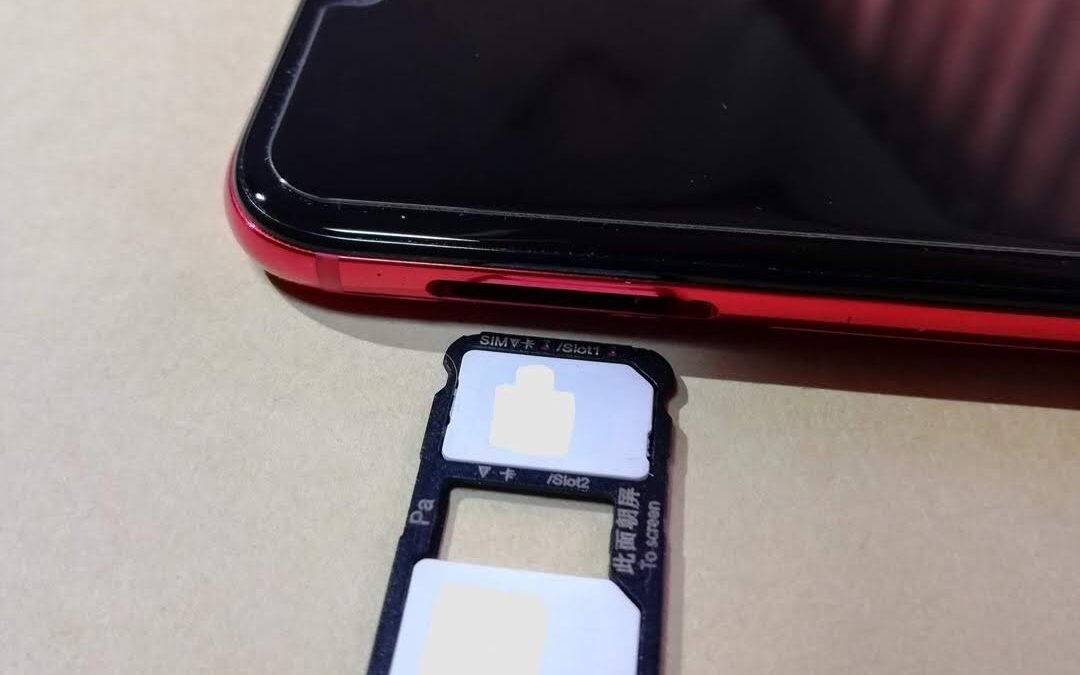
Check the handset arrangement next. Dual SIM handsets and eSIM capable phones can hold a pair of active numbers, which makes verification for the second account straightforward, and the explanation of how dual SIM phones hold two numbers clarifies why a second line can stay reachable while you set everything up. Finally, update the application to its current release and clear enough storage for a second chat history to grow. An outdated application may simply not offer the account adding option at all.
Android Checklist: Adding the Second Account Cleanly
On Android, the official route is the one to use. WhatsApp announced built in support for running a pair of accounts inside one application on Android, with separate chats, notifications and privacy settings for each account. Open your profile area, look for the account adding option beside your name and follow the prompts with the second number. Keep the handset connected, keep the verification message route open and resist switching away mid process, because an interrupted verification wastes time for everyone involved.
Complete the new profile deliberately rather than in a rush. Add a name and picture that contacts from that side of your life will recognise, review the privacy choices the setup presents and confirm which number the application now shows as active. Then switch back to the first account and confirm its chats sit exactly as you left them. Switching between accounts inside the application does not merge histories. Both remain stored separately on the device, and proving that to yourself with a calm test builds confidence for daily use.
Send a test message in each direction before you rely on the arrangement. Message the new number from a family phone, reply, then switch accounts and confirm the threads stayed on their proper sides. Repeat the test after the first update the application receives, since updates occasionally reset small preferences. Ten minutes of checking now prevents the particular embarrassment of answering a client from your personal profile, or a relative from your work one, later in the week.
iPhone Checklist: the Official Route and the Business App Detour
On an iPhone, start by looking for the same in application account option, since availability has expanded over time and your current release may already offer it. Where the option is present, the flow mirrors the Android experience closely. Add the second number, verify it and set the profile with care. Where the option is absent, the honest official detour remains available, and it has served many owners well for years without any dubious downloads entering the picture at any point.
That detour is WhatsApp Business, a separate official application from the same company. Many iPhone owners used it as the second home for a work account before in app support arrived, and it still suits that role neatly. Install it from the official store, register the work number there and treat its business profile fields as optional decoration rather than a requirement. Your personal account stays in the standard application, and the pair live side by side with separate icons, badges and histories.
Number supply is the other iPhone consideration. Models with eSIM support can carry a second line without a physical card, and the background on the eSIM and how carriers provision it explains why adding that line often happens entirely through carrier settings. Confirm the second line can receive a verification message before beginning setup, because a data only arrangement will fail at the code stage. Once verified, label each line clearly in the phone settings so you always know which number a given account answers to.
Notifications Checklist: Telling Two Inboxes Apart at a Glance
Two accounts fail in daily life when their alerts feel identical. Give each inbox a distinct notification sound inside the application settings, so a work thread arriving during dinner announces itself differently from a family message. Where the handset allows per account choices, vary the vibration pattern and the preview behaviour as well. The aim is recognition in a pocket or across a room, without needing to wake the screen and read private wording on the lock screen.
Decide, account by account, how much preview text should show when the phone is locked. A personal account might show full previews comfortably, while a work account may deserve sender names only, especially if clients discuss sensitive matters. Review group notifications separately too, because one lively group on the wrong account can train you to ignore alerts altogether. Muting by schedule, such as quiet work alerts in the evening, keeps the boundary you created the second account to protect.
Test the result honestly. Have someone message each account while the phone sits locked beside you, and note whether you can tell them apart by sound alone. Adjust until the answer is yes. That small test matters more than it sounds, because the entire arrangement promises separation at a glance. If every alert demands a close inspection, the two lives you separated on paper will keep colliding in practice, one buzz at a time, all day long.
Backups Checklist: Keeping Each Account in Its Own Cloud Home
Backups preserve the separation you have built, provided each account keeps its own. Each account holds its own cloud backup, linked to its number and to the platform account used on that handset. Open the backup settings inside each account in turn and confirm the destination, the frequency and the last successful date. A backup that silently failed months ago is a story many people discover only after losing a phone, which is exactly the wrong moment to learn it.
On Android, confirm which platform account each backup uses, especially on a handset signed into more than one. On an iPhone, confirm the cloud account has room for both histories to grow, because a full storage quota can stall one backup while the other proceeds and leaves you with uneven protection. Include media in the backup choice only where you truly need it, since video heavy threads swell quickly and can crowd out the messages you would miss most.
Write down, somewhere safe and private, which number belongs to which account and where each backup lives. That note sounds excessive until a handset is replaced under pressure, when memory blurs small details. During a phone change, restore and open one account fully before adding the second, testing chats and media as you go. Orderly restoration keeps histories in their own homes. Rushing both at once invites the confusion the whole checklist exists to prevent.
Privacy Checklist: Profile Pictures, Visibility and Work Boundaries
Finish with the settings other people actually see. Review each account profile picture, about line and status audience separately, because the photograph that suits family may not be the one you want clients studying. Set who can see your last seen status, profile details and live location on each account according to that side of your life. Work contacts rarely need your late night online status, and family groups rarely need a formal business description sitting beneath your name.
Check who can add each number to groups. Open group controls invite stray additions, and a personal number pulled into work groups, or a work number pulled into social ones, erodes the boundary from the outside. Tighten those controls to contacts where the application allows it, and leave groups that arrived through the wrong account promptly and politely. People generally understand a short explanation that the other number is the right home for that conversation, and most will simply move the thread themselves.
Last, revisit the whole arrangement after a few weeks of real use. Notice which account you open by habit, whether alerts still feel distinct and whether any contact keeps reaching the wrong side. Adjust sounds, previews and profile details based on that lived experience rather than first day guesses. A pair of accounts maintained this way stays what it promised to be at the start. Two calm inboxes on one handset, each with its own people, pictures and boundaries, and neither one buzzing through the moments that belong to the other.
Revisit contact lists as part of that review. Numbers saved twice under different names can blur which account a conversation belongs to, especially when a colleague is also a friend. Decide which side of your life each shared contact primarily belongs to and start conversations from that account consistently. Consistency teaches your contacts where to reach you for what, and over time they will self sort, sending work matters to the work number without being reminded.
Keep the handset itself tidy as the final check. Arrange the home screen so the active account is obvious at a glance, update the application promptly when a new release arrives and repeat the switching test after any major system change. Small resets of preference do happen occasionally, and catching one early is far easier than untangling a week of messages sent from the wrong profile. With those habits in place, the arrangement stops feeling like a project and simply becomes how your phone works.


