A charged e-reader and an active library card are enough to start borrowing, yet the borrowing part stays hidden until the device, the lending app, and the library account are connected in the right order. Once that connection exists, finding a title, sending it to the reader, and opening it becomes a calm routine rather than a puzzle.
Preparing the Reader and the Library Card Before Connecting Anything
Start with the simple things, because most borrowing problems are preparation problems in disguise. Charge the reader fully, connect it to your home wireless network, and check that the date and time look right, since a reader with a confused clock can struggle to sign in or to open borrowed books. Let any waiting updates finish before you go further.
Prepare the phone or tablet that will run the lending app in the same spirit. That device carries your library sign in and, in many setups, hands the borrowed book across to the reader, so its software should be current and its own connection steady. The habit of updating every Android app at once is worth adopting before you begin, because an outdated lending app is a common and needless cause of failed sign ins. While updates run, find the lending app your library uses, install it from the official store for your device, and leave it unopened for the moment.
Now prepare the library side. You need an active library card and the personal code or password that goes with it, the same details you would use for the library catalogue on a computer. If you have forgotten that code, recover it through the library before touching the reader, since guessing at it inside the app only locks the process in circles. Check too that the card itself is still active. Cards can lapse, and a lapsed card will block borrowing no matter how perfect the device setup is.
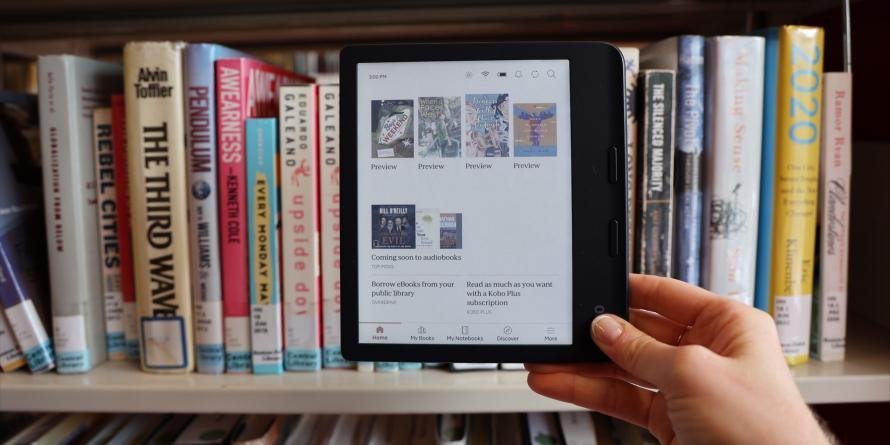
It helps to know what the reader itself is. Background on the hardware comes from Wikipedia article on e-readers, which describes dedicated devices built around electronic paper displays designed for reading digital books, alongside tablets and phones that can also display them. A dedicated reader is built for long, quiet reading in varied light, while a phone offers colour and speed at the cost of glare. Either can borrow, and the preparation above serves both.
Connecting the Lending App to the Library Account
With preparation done, open the lending app and find its sign in or add library step. Choose your own library from the list the app offers, searching by its name or by your town if the list is long. Libraries with similar names exist in different places, so read the full name carefully before choosing. Picking a namesake library across the country is an easy mistake, and it produces a puzzling failure when your card details are then rejected.
Enter the card number and its personal code exactly as the library issued them, watching for spaces or extra characters copied in by accident. Once accepted, the app links your account to that library collection, and the shelves you browse are that library shelves, with its own selection of titles and its own lending rules. This link is the heart of the whole process. The reader, the app, and the card are no longer three separate things. They are one borrowing account seen from three sides.
For the lending side, the Wikipedia entry on OverDrive, Inc. explains that the company supplies digital lending services to libraries and schools, distributing ebooks and audiobooks that patrons borrow through library systems rather than buying outright. That borrowed rather than bought nature explains everything that follows. Titles can be unavailable because another patron holds them, loans end on their own, and the catalogue belongs to the library rather than to you. Accepting that model early makes the rest of the system feel logical instead of mean.
Collections, loan periods, and sign in steps vary between library systems, so the screens you see may differ in wording from any general guide, including this one. Follow the meaning rather than the exact words. If the app offers to stay signed in on your own private device, accepting makes future borrowing smoother. On a shared device, decline it and sign out when you finish.
Sending a Borrowed Title to the Reader Screen
Borrowing itself is a short sequence once the connection exists. Search the library collection inside the app by title, author, or subject, just as you would in the catalogue. Open a title that interests you and look at its availability. If a copy is free, the borrow option will be offered plainly. If every copy is out, the app will offer a hold instead, which joins you to the waiting line for that title. Choose borrow when you can, and let the app confirm the loan before you go looking for the book.
After borrowing, the title needs to travel to the reader. In many setups the app offers a read or send option that delivers the book to the device or format you prefer, and the reader then downloads it the next time it connects to the wireless network. Keep the reader nearby, awake, and connected during this step. A borrowed book that seems missing is very often simply waiting for the reader to connect and fetch it. Give it a moment, check the reader library or home screen, and refresh its connection once before assuming something has gone wrong.
Open the book on the reader to confirm the journey worked. Turn a few pages. Check that the text is complete and readable, and that the cover and contents look as expected. That small test, done while you still remember the steps you took, is far easier than diagnosing a problem days later when you settle down to read and find an empty shelf. If the book opens well, the system is proven, and every later loan is just a repeat of a routine you now own.
Audiobooks follow the same borrowing logic but play inside the app on a phone or tablet rather than on most dedicated readers, so keep the distinction in mind and look for each format in the right place.
Reading Comfort Settings Worth Adjusting Early
Before your first long reading session, spend a few minutes on comfort settings, because small adjustments made early become invisible habits later. Text size is the first. Set it so you can read relaxed, without leaning toward the screen or squinting at the line ends. A size that feels slightly large at first often proves kinder over a long evening than a size that packs in more words and tires the eyes.
Spacing and margins come next. Wider spacing between lines gives the eye an easier path back to the start of the next line, and a little margin keeps text from crowding the edge of the screen. Many readers also offer a choice of typeface. Pick the one you find clearest, and leave it alone once chosen.
Light deserves care on devices that provide it. A gentle built in light, set low, suits evening reading, while daylight reading on an electronic paper screen often needs no added light at all. Set the tone once for the room you read in most. The goal is a screen you forget, so the story takes the whole of your attention.
Finally, learn the gestures or buttons for turning pages, opening the contents, and placing a bookmark, and try each once before you need it mid chapter. Comfort, in the end, is mostly familiarity arranged in advance.
Holds, Renewals, and Automatic Returns Explained Plainly
Holds are the waiting lines of the digital library, and they work much like the waiting lines for a popular printed book. When every copy of a title is out, placing a hold reserves your place. When a copy frees up and your turn arrives, the title is offered to you, and you then borrow it within the window the library sets. Keep an eye on the app or your library messages if you are waiting on a book you care about, so an offered hold does not slip past unborrowed.
Renewals depend on the library and on demand for the title. Where renewal is offered, it extends the present loan rather than starting a new one. Where another patron is waiting, renewal may not be offered at all, because the copy is spoken for the moment your loan ends. Neither outcome is a fault. It is the sharing model working as designed.
Automatic returns surprise new borrowers most, so it is worth stating plainly. When a loan ends, the book returns itself. The file on your reader stops opening, or the title leaves your shelf in the app, without you needing to do anything and without any late penalty of the kind printed books can carry. That self returning habit is one of the quiet kindnesses of digital lending. You cannot forget to give a book back, because the system remembers for you.
Your place in the book is your own concern, though. If you borrow the same title again later, do not rely on the reader remembering where you stopped. A simple note of the chapter you reached protects your place across a gap in borrowing.
Fixing the Common Connection Problems Calmly
Most problems yield to a short, calm checklist worked in order. If sign in fails, recheck the library you selected and retype the card number and code slowly, since a single wrong character is the usual cause. If the card itself is rejected, confirm with the library that it is active and that the code is the one currently attached to it. No amount of device fiddling can repair an account problem, so settle the account question early.
If a borrowed book will not appear on the reader, check the basics in sequence. Is the reader connected to the wireless network? Is it signed in to the same account world as the app? Has it had a moment to fetch new titles since the loan was confirmed? Reconnecting the reader, or restarting it once, resolves a surprising share of these cases. Check also that the loan itself completed in the app, because a borrowed book that was never fully confirmed cannot travel anywhere.
If a book opens but misbehaves, remove the download and fetch a fresh copy through the app, since a clean copy usually cures the fault. If the app itself acts strangely, close it fully, reopen it, and make sure it is updated. Vary a single setting at a time, so you learn which change fixed the fault.
When the checklist fails, ask the library. Staff handle these connections daily and can see account problems that no reader at home can see. Describe what you tried, in order, and the exact words of any error message. Once the routine works, protect it: keep the card active, keep the app current, and borrow often enough that the steps stay familiar.