
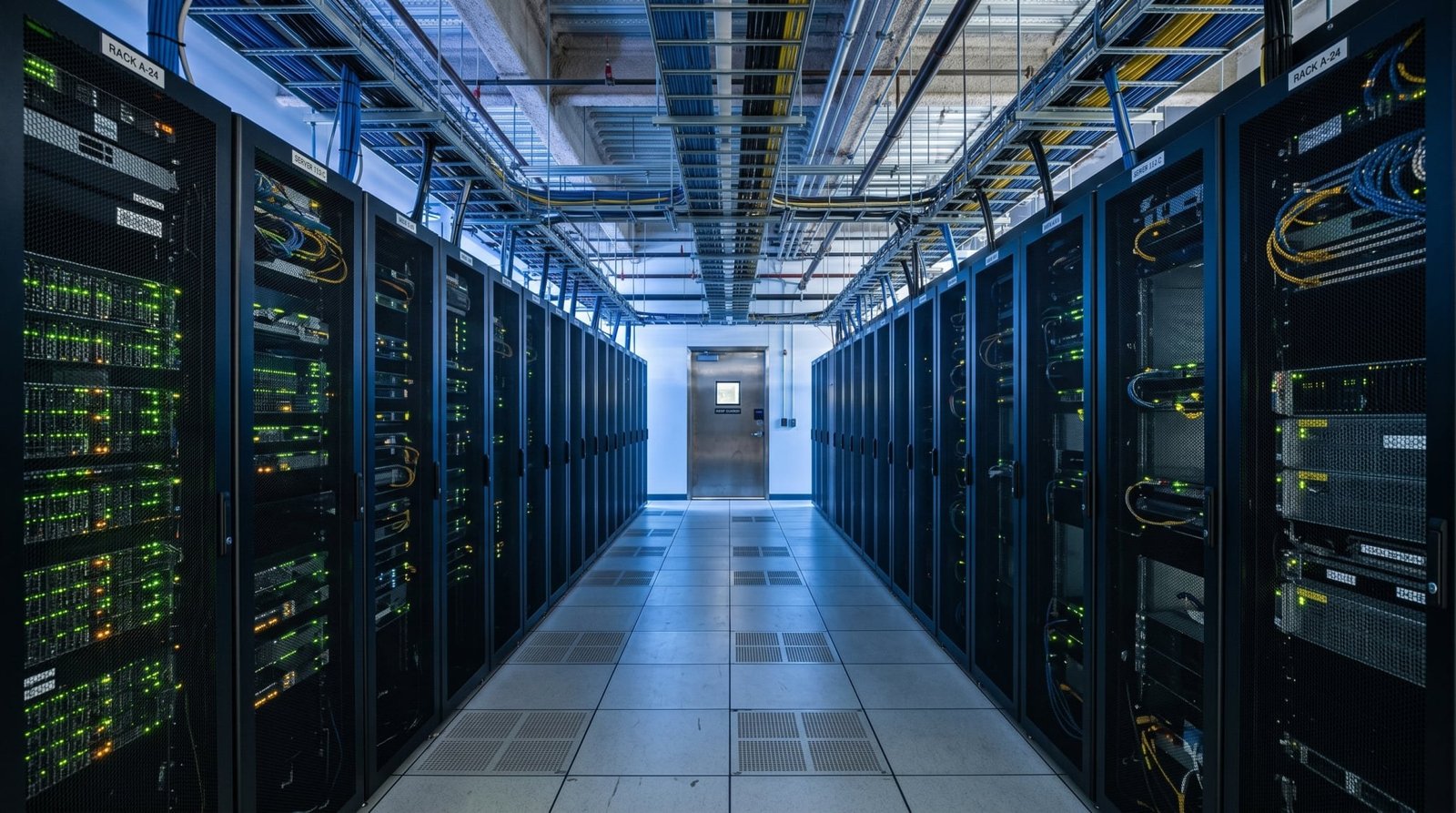
Files that live on distant servers survive fires, floods and stolen laptops — and the same convenience turns risky the moment a single reused password guards the whole vault. Remote storage earns its place in a household by keeping a copy of what matters far from the hazards that threaten a single room, yet that same reach means a stranger who guesses the password can reach the same files from anywhere. The safe way to use it is therefore simple to state and worth doing carefully: pick the service that fits the devices already owned, lock the account with a password used nowhere else plus a second factor from an authenticator application, and treat the remote copy as one leg of a wider backup habit rather than the only copy in existence. That trio of decisions answers most of the worry that surrounds remote storage, and the rest of this piece works through each one in turn, with the services weighed, the locks explained, the folders planned, and the sharing rules set out plainly. For a wider comparison of the two main ways households keep a spare copy, the cloud storage vs external hard drive comparison sets the remote approach beside a drive kept at home, and the contrast helps explain why many households end up using both.
The short answer on picking a service and locking it down
Start with the devices already in the house, because the service that lives inside them is the service that will actually get used, and a theoretically perfect service that nobody opens protects nothing. A household built around iPhones and Mac computers suits the Apple service, which sits inside every device and keeps photographs, documents, and device backups moving without any extra application. A household built around Android handsets and Chromebooks suits the Google service, which arrives with a generous no-cost allowance and grows through a paid plan that also covers photographs and mail. A household built around Windows computers suits the Microsoft service, which arrives with a small no-cost allowance and often comes bundled with a subscription many households already pay for, covering office applications alongside storage. Dropbox remains strong for households that mix platforms and share folders across them, though its no-cost allowance is the smallest of the group and fills quickly with photographs. Privacy-minded households can choose a service that encrypts files so the company itself cannot read them, with Proton Drive and Tresorit as the best-known names in that corner, at a modest premium over the mainstream services. No single choice suits every household, and the right choice is the one that matches the devices on the shelves, because daily use beats a perfect specification every time.
How remote drives keep copies alive when hardware dies
Understanding the machinery underneath remote storage makes its strengths and its limits easier to judge, and the machinery is less mysterious than the name suggests. When a file is saved to a major remote-storage service, it travels over an encrypted connection to data centres where copies are spread across multiple drives and locations, so a single failed drive, a flooded building, or a stolen laptop cannot take the only copy with it. That spread of copies is the reason remote storage survives fires, floods, and theft that would destroy a home drive, and it is the genuine magic at the heart of the idea. Files sync to every device, so an edit made on a laptop appears on a handset moments later, and a photograph taken on a walk appears on the family computer without a cable in sight. The trade-off is plain and worth stating honestly: the files live on someone else computers, guarded by the account password and the provider security practices, so the owner trades physical control for redundancy and reach. That trade suits most households, provided the account locks from the opening passage are set, and provided the owner remembers that sync is not the same as a backup, a distinction the later passages return to.
The general idea has a long history in computing, and the general background on remote storage traces how shared servers grew from office networks into the household services used today. What changed for households is scale: storage that once cost a fortune now arrives in allowances large enough for documents and photographs, and the sync that once needed an expert now happens silently in the background. Yet the old backup rule still applies, and it deserves a plain statement here because it frames everything that follows. Keep three copies of anything that matters, on two kinds of media, with one stored away from home, and let remote storage be one leg of that trio rather than the whole of it. A remote copy plus a copy on a home computer plus a copy on a drive kept elsewhere covers fire, theft, and a provider outage in one stroke, while a remote copy alone covers only the first two. Version history adds another quiet safety net, because most providers keep earlier versions of a file for about a month, so an overwritten document or a corrupted spreadsheet can be wound back, though that window is short and should not be relied upon as a long-term archive.
Free allowances, paid tiers and the silent moment they fill
Every major service opens with a no-cost allowance, and the size of that allowance shapes how quickly a household outgrows it. The Google service opens with the largest no-cost allowance of the mainstream group, enough for documents and a modest photograph collection, and its first paid tier costs a small monthly fee, less than a takeaway lunch, for an allowance several times larger. The Apple service opens with a smaller allowance that fills quickly once photographs and device backups arrive, and its first paid tier costs an even smaller monthly fee, barely more than a coin or two, for an allowance that suits most households. The Microsoft service opens with the smallest mainstream allowance, though many households already hold a subscription that raises it substantially, and Dropbox opens with the smallest allowance of all, only enough for documents and a handful of photographs. The privacy-focused services open smaller still and charge a modest premium, which buys encryption that keeps the provider itself from reading the files. None of these allowances is right or wrong in itself; the question is whether the allowance fits the household library, and the answer changes as photographs accumulate.
The danger of a no-cost allowance is not its size but the silence with which it fills, because a full allowance does not announce itself with drama. Sync pauses, backups stop, and new photographs wait on the handset, sometimes unnoticed for weeks, until a lost handset reveals that the backup stopped long ago. Check usage every few months inside the provider storage dashboard, and watch for the warning that the allowance is nearly full, because that warning is the moment to act rather than to dismiss. That opening paid tier gives households the strongest return for the money, costing less than a takeaway lunch each month for room that covers documents and photographs together, and family plans that split a larger allowance across several people make it cheaper still per person. Do not build a whole family backup habit on a no-cost allowance without watching it, because an unwatched allowance is a promise that quietly expires. Current pricing for the Google service sits on the Google One plans and pricing page, and the other providers publish similar pages that are worth a glance before choosing. Buy the tier that leaves generous headroom above current use, because photographs grow every month and a tier that fits today will feel tight within a year.
The five account locks worth setting on day one
Folders and file names that stay findable for years
Sharing links without handing strangers the keys
Sharing is where leaks happen, because a link is easy to create and easy to forget, and the habits around sharing deserve as much care as the password itself. Prefer sharing with specific people who must sign in over sharing with anyone who holds the link, for anything sensitive, because a named share can be revoked person by person while an open link can travel anywhere without a trace. Set an expiry date on any shared link if that option exists, so a link sent for a single occasion stops working after that occasion passes, and delete one-way links after the recipient has taken the file, rather than leaving them open indefinitely. For family documents that several people edit together, such as budgets or trip plans, a shared folder where everyone can change the file works well, because every member sees the same living document and edits appear everywhere at once. For one-way sharing, such as passing a document to a tradesperson, a link that allows viewing only and is removed afterwards is safer, because the recipient can read without gaining the power to change or to share onwards.
Reader queries on safety, size and sharing
What happens if payment lapses? Files stay put, but syncing and fresh uploads halt once use passes the no-cost allowance, and providers warn repeatedly before that point, so a lapsed payment is an inconvenience rather than a crisis, provided a home-kept copy of everything important exists somewhere else. Keep that local copy current, because it turns a billing hiccup into a shrug. Can the provider read the files? With standard services, the answer is yes in theory, though access is tightly restricted and logged, and the provider has strong reasons to keep that access narrow. If that possibility bothers you, use a privacy-focused provider that encrypts files so the company itself cannot read them, or scramble sensitive files yourself before sending them up. And what about the honest limits? Sync can spread a mass deletion, because a file deleted on one device vanishes everywhere within moments, which is why version history and a separate offline copy matter. No provider guarantees files forever, because companies alter terms, get bought out, or withdraw products, so the trio of copies from the earlier passage remains the rule. Local copies matter for travel too, because a dead connection should never leave a boarding pass or an insurance card out of reach. Keep the remote copy, keep a local copy, keep the locks set, and the convenience survives the risks that come with it.



One comment