Handwritten notes have one big problem: they are trapped on paper. You cannot search them, copy from them, share them cleanly, or feed them into anything else. Modern AI has quietly become excellent at fixing this. Point a phone camera at a page of handwriting and tools like ChatGPT, Google Lens, and built-in phone apps can return clean, editable text in seconds — lecture notes, meeting scribbles, journal pages, even a grandparent’s recipe cards.
This guide walks through the best methods for phones and computers, how to get accurate results even from messy handwriting, and the honest limits: what AI reads well, what it garbles, and the privacy questions worth thinking about before you upload personal pages.
Quick Answer
The fastest method is the ChatGPT app (or another vision-capable AI app): take a clear, well-lit photo of one page, upload it, and prompt “Transcribe this handwriting exactly, preserving line breaks and headings.” Then ask for a cleaned-up version if you want punctuation fixed. Free alternatives include Google Lens (point, select text, copy), Apple’s Live Text on iPhone, and Microsoft OneNote or Google Keep, which make handwritten text searchable automatically. Accuracy on reasonably neat handwriting is typically 90–98%; messy cursive, faded ink, and cramped pages need a page-by-page check.
The Main Methods, Compared
Method 1: A Vision AI App (ChatGPT, Claude, Gemini)
These apps read the image with a multimodal model, which means they use the meaning of the words — not just letter shapes — to decode doubtful handwriting. That context awareness makes them the most accurate option for messy writing.
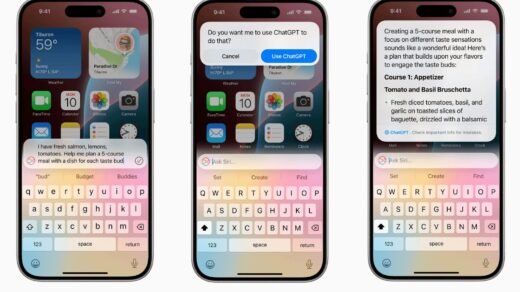
- Open the app, tap the image or camera icon, and attach a photo of one page
- Prompt: “Transcribe all handwriting in this image exactly as written. Keep the structure — headings, lists, and line breaks. If a word is unclear, mark it [unclear] rather than guessing.”
- Follow up if needed: “Now give me a second version with spelling and punctuation cleaned up, but do not change any wording”
That two-version approach is the professional habit: keep one faithful transcript as your record, and use the cleaned version for sharing or reuse. It is a good example of the broader principle covered in our guide to how teachers can use AI productively without misuse — the tool does the mechanical work while a human keeps control of accuracy and intent.
Method 2: Google Lens (Free, No Account Needed)
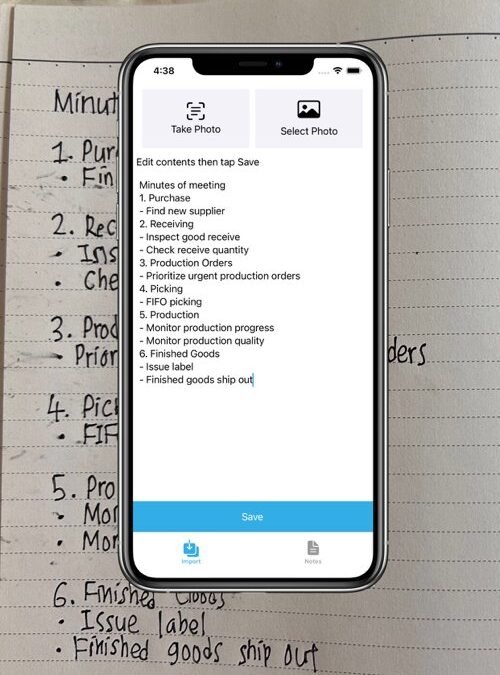
Open the Google app or Chrome on your phone, tap the Lens icon, point it at the page, and choose Text. Lens highlights the words it detects; tap Select all, then Copy text, and paste anywhere. Lens is fast and free, and it handles printed text superbly. For handwriting it is good on neat printing, weaker on flowing cursive, because it leans more on character recognition than on meaning.
Method 3: Built-In Phone and Note Apps
- iPhone Live Text: take the photo, open it in Photos, and long-press on the handwriting — iOS lets you select and copy recognized text directly, on iPhone XS and later
- Google Keep: create a note from an image, then use “Grab image text” to extract it; Keep also makes handwriting in photos searchable
- Microsoft OneNote: insert a picture of notes, right-click (desktop) to copy text from the picture, and OneNote indexes handwriting for search automatically
- Samsung Notes and similar: most Android note apps now include a handwriting-to-text conversion button for anything written with a stylus
These are ideal if your notes already live in that ecosystem, and they avoid uploading pages to a separate service.
How to Photograph Notes for the Best Results
AI accuracy is decided before you open the app — by the photo. Follow this checklist:
- Light: bright, even light, no shadows from your hand or phone across the page; daylight near a window beats a dim desk lamp
- Angle: shoot straight down, page flat, all four corners in frame; a skewed angle distorts letters at the edges
- One page per photo: a two-page spread in one shot halves the resolution per page and tanks accuracy
- Fill the frame: get close enough that the page occupies most of the image, but keep every line inside it
- Contrast: dark ink on white or lightly lined paper reads best; pencil and faded ink are the hardest — increase exposure slightly rather than using flash, which glares
- Steadiness: tap to focus on the middle of the page before shooting, and take two shots of important pages
Fixing and Using the Transcription
Even a 95% accurate transcript needs a pass, because the 5% tends to hide in names, numbers, and technical terms — exactly the parts that matter. Read the transcript against the photo once, correcting as you go. This takes about a minute per page and is still vastly faster than retyping.
Then make the text earn its keep:
- Summarize: “Summarize these notes into the five key points and any action items”
- Reformat: “Turn this into a clean study outline” or “Convert this list into a table”
- Search and store: paste transcripts into a notes app or document where they become permanently searchable
- Translate: vision models can transcribe and translate in one step — “Transcribe this, then translate it into English”
Accuracy guidance from digitization projects, including the Smithsonian’s transcription programs, consistently makes the same point you can apply at home: machine transcription plus a quick human verification pass beats either one alone, and the National Archives preservation guidance is a useful reference if you are digitizing family documents you intend to keep for decades.
What AI Still Struggles With
Be realistic about the hard cases:
- Dense cursive, especially older styles with unfamiliar letterforms
- Heavy abbreviations and personal shorthand — the model cannot know your private symbols
- Numbers and formulas, where a misread digit is invisible to context; verify every figure
- Overwriting, cross-outs, and margin notes crowded together
- Very faint pencil on textured or yellowed paper
For a page that matters legally, medically, or financially, treat the AI output as a draft and verify every word against the original.
Common Mistakes When Converting Handwriting With AI
- Photographing a whole notebook spread or several pages in one shot. Resolution per page collapses and errors multiply. One page, one photo.
- Skipping the “[unclear] instead of guessing” instruction. Without it, models confidently invent a plausible word for an illegible one — and you may never notice the substitution.
- Not proofreading names and numbers. Context fixes most words, but proper nouns and figures get no context help. Check them all.
- Uploading sensitive pages without thinking. Medical notes, financial details, and private journals sent to a cloud AI are processed on someone else’s servers. For sensitive material, prefer on-device options like Live Text or OneNote, and review the service’s data settings first.
- Deleting the photos after transcribing. The image is your original. Keep it archived alongside the text, at least until you have verified the transcript carefully.
- Expecting miracles from terrible input. A blurry, shadowed photo of faint pencil will defeat any tool. Retake the photo before blaming the AI.
Conclusion
Turning handwriting into text has gone from a paid transcription service to a ten-second phone task. Use a vision AI app with an exact-transcription prompt for messy or important pages, Google Lens or Live Text for quick free captures, and a note app when you want everything searchable automatically. Photograph one page at a time in good light, demand that unclear words be flagged instead of guessed, and proofread names and numbers. Do that, and your paper notes become text you can search, share, summarize, and actually use.
FAQ
Which app is most accurate for messy handwriting?
Vision AI apps like ChatGPT, Claude, and Gemini are currently the most accurate for messy handwriting because they use the meaning of sentences to resolve ambiguous letters. Pure OCR tools like Google Lens are faster and free, and excellent on neat printing, but they stumble more on cursive and personal shorthand.
Can AI read cursive handwriting?
Yes, usually well, provided the photo is sharp and the cursive is not extremely stylized or faded. Accuracy drops with older cursive styles, heavy slant, and tightly packed lines. Transcribing one page at a time and asking the model to flag unclear words with [unclear] instead of guessing makes cursive results trustworthy enough to proofread quickly.
Is it safe to upload photos of personal notes to an AI app?
It depends on the content and the service’s privacy settings. Major providers process uploads on their servers and may retain data according to their policies, with opt-outs available in most apps. For sensitive notes — medical, financial, or legal — use on-device tools like Apple Live Text or a desktop app, or transcribe those pages manually.
Can AI transcribe handwriting in other languages?
Yes. The major vision models handle handwriting in dozens of languages, including Spanish, French, German, and many non-Latin scripts, and can translate in the same step if you ask. Accuracy is highest in widely used languages and neat handwriting; always proofread proper names, which models may render phonetically.