
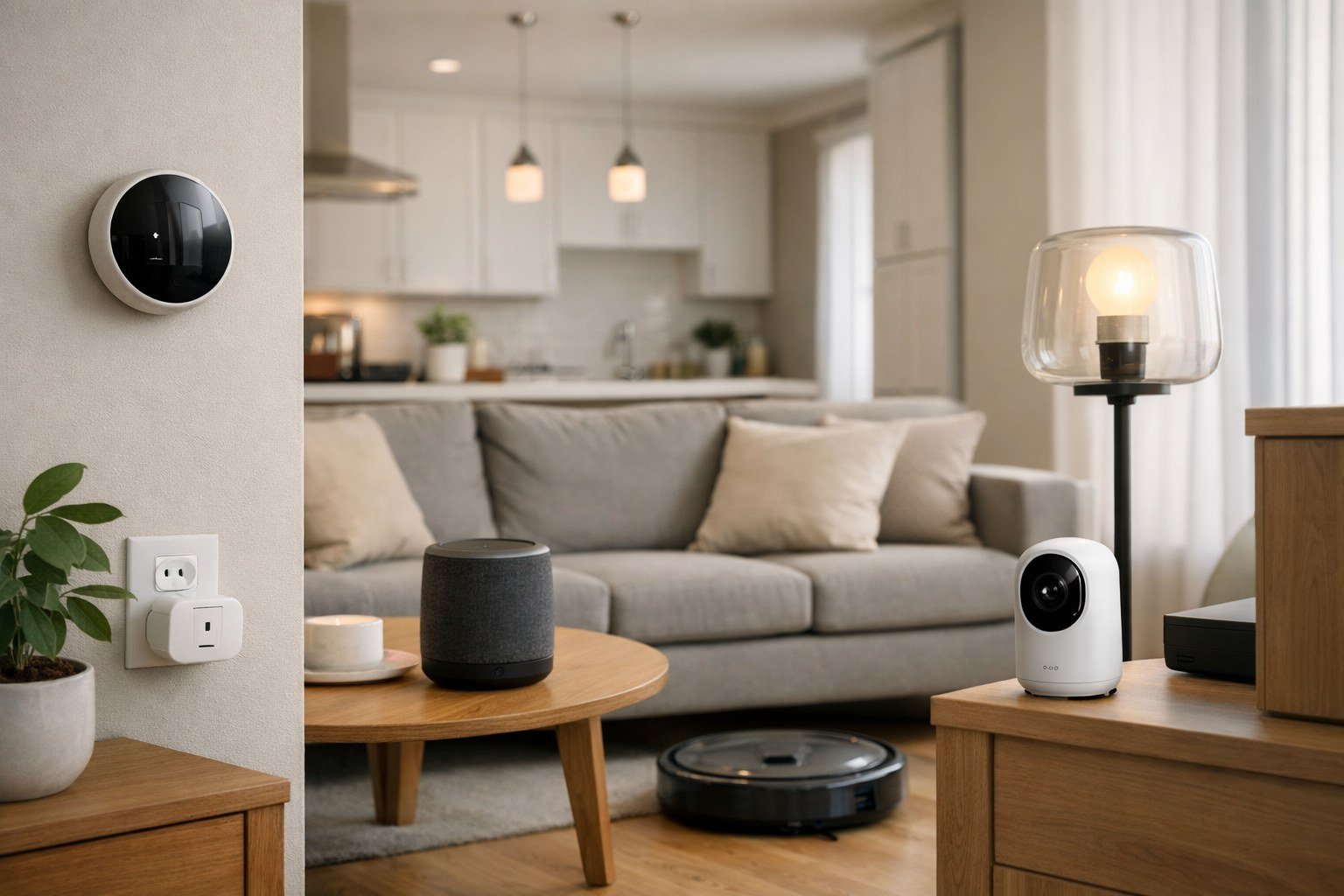
Twenty small computers now share your hallway, your kitchen and your doorstep, and most of them arrived with the same factory password a stranger can guess in seconds. The typical American home now holds upwards of twenty connected gadgets, from speakers and cameras to thermostats, bulbs and plugs, and each one is a small computer sitting on the household network. The attacks that find them are rarely cinematic. A camera left on its factory password can be spotted by automated probes soon after it first connects, an outdated plug can be swept into a botnet, and a compromised gadget can open a path to the laptop holding tax records. The fix is reassuringly ordinary: a checklist a reader can finish in one afternoon, with each item ticked off in order and nothing left vague.
Almost every item on the list costs nothing. Changing factory passwords, enabling multi-factor sign-in, updating firmware and segmenting the network are all free, and a password manager that handles unique credentials for twenty devices is free in excellent options such as Bitwarden. Only two purchases ever deserve a thought: a current router that updates its own defences automatically if the present one is ancient, and optionally a hub from a reputable brand, each a modest sum rather than a major outlay. Anyone quoting a large fee for smart-home protection is selling fear, because the free checklist that follows carries the real protection. Readers weighing a doorbell of their own can also read how to set up a video doorbell without a subscription for a way to hold doorbell recordings at home rather than on a distant server.
The password sweep every gadget needs on day one
Tick one: change every factory password, starting with the cameras and doorbells. Take each gadget in turn, open its account or its settings, and replace the credential it shipped with for a long unique one held in a password manager. Lenses and doorbells deserve to go first, along with any network storage in the house, because automated scanners look for them hardest and a lens that watches the front step is the worst gadget to hand to a stranger. Never reuse the mail password on a gadget account, and never reuse one gadget password on another, because a single leak should never open every door at once. If a gadget refuses a password change or forces a weak one, treat that as a verdict on its maker and think about replacing it, since a device that cannot be secured is a device that should not stay on the network.
Tick two inside the same sweep: harden the router itself, because it is the front door of the whole digital home. Change the router admin password from its factory value, switch remote administration from the internet off, and confirm its firmware is current before moving on. The router password matters as much as any camera password, since whoever controls the router controls every gadget behind it. Work through the home gadget by gadget, ticking each one off on paper as its password changes, and do not stop until the list is empty. A sweep left half finished is barely better than no sweep at all, because scanners need only one forgotten device.
Firmware patches and the habit of leaving updates on
Tick three: update the firmware on every gadget today. Makers patch faults regularly, yet a patch only protects a home once it is installed, so open each gadget app and look for an update right now, beginning with cameras and doorbells, which sit directly reachable from the internet. Wherever an automatic update switch is offered, leave it on, so the next patch arrives without a reminder and without a chore. For the gadgets that offer no automatic updates, set a quarterly reminder and treat it like a smoke-alarm battery check: brief, boring and non-negotiable.
Tick four: judge future purchases by their update promise. Before buying another gadget, look for a maker whose patch history stretches across several years, because a bargain unbranded camera that receives no patches at all is the dearest device in the house once risk is counted. Cheap no-name gadgets often ship with fixed passwords and receive no patches at all, which makes them the riskiest devices a home can hold. A known brand with a patch history costs a little more at the till and far less in worry afterwards. Keep a short note of each gadget’s maker and the date its firmware was last checked, so the quarterly reminder becomes a five-minute review instead of a fresh hunt through every app.
A separate network lane for bulbs, plugs and cameras
Tick five: move all gadgets onto the guest or connected-device network, away from the network that phones and laptops use. This is the structural move that costs nothing and changes everything, because a compromised bulb on its own lane cannot reach the household computers. Most current routers include a guest network that takes about five minutes to set up, and the steps are simple: open the router settings, switch the guest network on, give it its own password, and join each gadget to it in turn. Laptops, phones and tablets stay on the main network, while bulbs, plugs, cameras, speakers and thermostats live on the other side of the fence.
Tick six: test the fence once the move is done. Try reaching a laptop from a gadget app, confirm the gadgets still answer their own apps, and confirm the household computers still print and share files as before. A fence that breaks daily life will be switched off within a week, so the test matters as much as the setup. If a particular gadget refuses to work on the guest lane, look for its own isolation or client-separation setting before giving up, and keep that gadget in mind as a candidate for replacement. The idea behind the whole exercise is simple to state and worth repeating: one weak bulb should never become a road into the laptop that holds the family finances.
Accounts, voice ordering and linked services under review
Tick seven: lock down every gadget account with its own strong password and multi-factor sign-in. Every maker account, from the voice assistant to the camera brand and the plug brand, deserves the same treatment as a bank login, because each one is a doorway into the home. Open each account in turn, switch the second factor on, and confirm the recovery details are current while the reader is already inside the settings. Then review which outside services are linked to the voice assistant and revoke anything unrecognised, since a forgotten link from years ago is still a live permission today.
Tick eight: tame voice ordering and camera behaviour. Lock purchasing behind a confirmation code so a television advert cannot order goods through a speaker, and check camera privacy zones and audio recording, switching off sound capture where it is not needed. A bulb app demanding access to contacts and location is a warning sign, so review the permissions each gadget app holds and strip away anything it does not need to function. Readers who want the wider picture of connected homes can read how smart homes link everyday devices together to see how speakers, sensors and appliances share one network. Finish this section by writing down which accounts exist and which second factors protect them, because a list the reader can see is a list the reader can keep.
A buying lens for the next gadget on the shelf
Tick nine: apply a short buying lens before the next gadget comes home. First, the update promise: does the maker pledge security updates, and over how long a span, in writing rather than in a slogan. Second, local control: gadgets that run without a cloud account keep running even when the maker disappears, and they send less household data to distant servers. Third, the brand: obscure makers often ship with fixed passwords and no patch process, while established names publish update histories a buyer can inspect. Fourth, the app permissions: a light bulb has no honest need for the address book, so a greedy permission request is a reason to choose another brand.
Tick ten: look for the Matter standard, which boosts cross-brand compatibility and keeps control local, so a gadget bought today can still work with a different voice assistant tomorrow. Matter support is not a guarantee of good security on its own, yet it signals a maker that builds for open standards rather than a closed silo. Weigh the two optional purchases here as well: a current router only if the present one is ancient and cannot update itself, and a hub from a reputable brand only if one control point for many gadgets would genuinely simplify the home. Neither purchase is urgent, and neither replaces a single item on the free checklist above.
Signs of a takeover and the reset order that follows
Tick eleven: learn the signs of a takeover before one happens. A camera that moves on its own, unknown gadgets appearing in the home app, or an internet connection that slows dramatically for no reason are all reasons to treat the home as breached rather than glitchy. The reset order matters, so follow it exactly: change the passwords on the gadget and its cloud account first, then revoke unknown linked gadgets and outside integrations, then update the firmware, and finally change the wireless password so every gadget must sign in again and any intruder is locked out. Write down what happened with its dates and screenshots in case a warranty claim or an incident report is ever needed.
Tick twelve: decide when replacement beats repair. If the maker offers no route to lock the gadget down, no password change, no patch, no second factor, then the gadget has no future in the home and should be replaced with one from a maker with a public patch record. Document the decision, retire the old gadget rather than passing it to a relative, and repeat the firmware check quarterly from now on. Readers curious about the technology underneath can read how the internet of things connects ordinary objects for the background on why so many small computers now share one household network. The whole list fits in one afternoon, the core of it costs nothing, and a home that works through it gadget by gadget stops handing strangers the keys.



One comment