
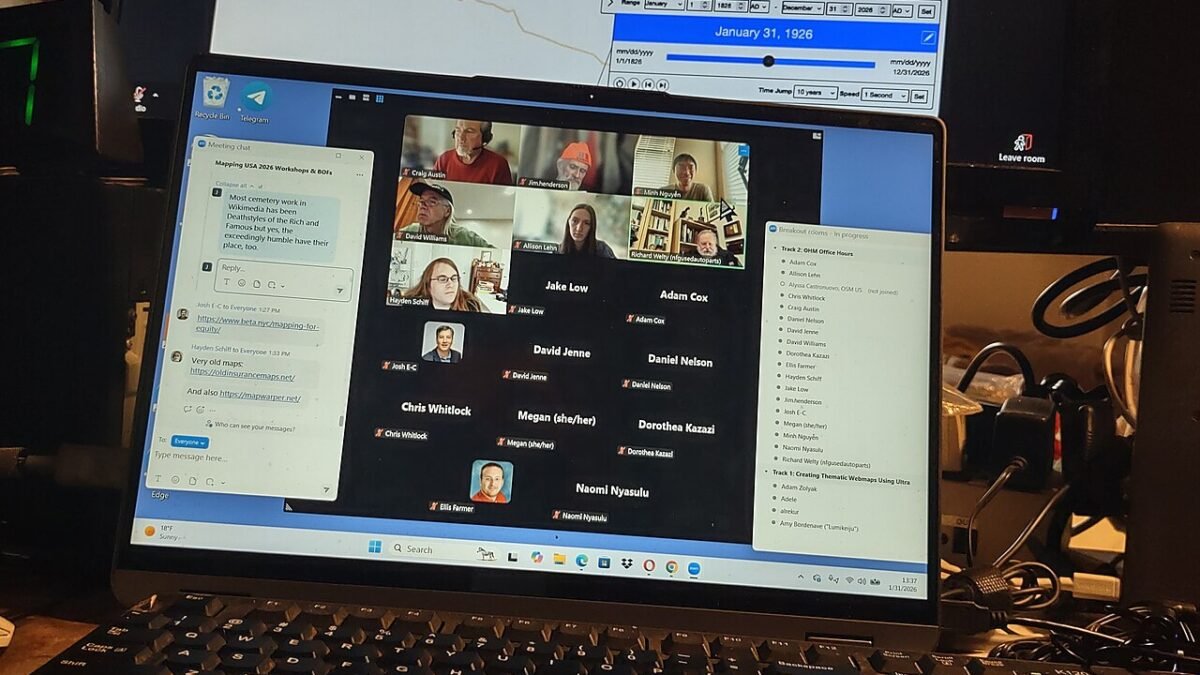
Yes, in most cases a spare slate already sitting at home can pull double duty beside a portable computer, sparing the cost of another panel. Built in pairing on some pairings works beautifully, while mixed brands lean on small helper programs instead. Connection choice shapes sharpness, delay and battery drain more than brand badges do. What follows weighs each route plainly before the setup steps.
Pairings That Work Without Extra Software
The smoothest route needs no downloads at all. Apple documents a built in feature that lets its computers treat a nearby tablet from the same maker as another display, either through a cable or over a wireless link, provided both devices are signed into the same account. Once connected, the tablet can extend the desktop, giving extra room beside the main screen, or mirror it for showing the same view to someone nearby. Anyone settling a spare tablet into a permanent spot beside the main screen is really building a small desk system, and thinking through setting up a home office tech kit helps that spare screen sit alongside the keyboard, stand, and cables as one tidy arrangement rather than an afterthought balanced on a pile of books.
Samsung offers a similar built in path for its larger tablets, which can pair with compatible computers over a wireless link according to the maker support material. The tablet announces itself as an available display, the computer connects, and the desktop stretches across. Reading an overview of multi monitor working setups explains why spreading work across more than one panel changes habits so much: the pointer travels between screens, windows settle into homes, and the constant shuffling of overlapping windows fades. Built in pairings share clear limits, though. They stay inside one brand family, they expect recent devices, and they vanish entirely when the computer and tablet come from different makers, which describes a great many households.
Before assuming a purchase is needed, check what the devices already offer. Open the display settings on the computer with the tablet awake nearby, and look for an option to add a wireless display. If the tablet appears by name, the pairing is built in and the job takes minutes. If nothing appears, with both devices on the same wireless network and signed in as required, the household belongs to the mixed brand group covered next.
Helper Programs for Mixed Brand Households
Independent programs exist precisely for the pairings the makers left out. Installed on both the computer and the tablet, they persuade the computer that the tablet is a genuine extra display, then stream the picture across a cable or the home network. Quality varies between programs, and makers of these tools note that a wired link generally delivers steadier motion than a wireless one, a pattern worth trusting when choosing. Free versions often limit session length or picture quality, while paid versions remove those caps and add touch support, so start with a free trial and judge on your own desk rather than on promises.
Understanding what the tablet itself brings to the job helps when setting expectations, and the history of the tablet computer traces how these portable slates developed into machines with screens sharper than many dedicated monitors. That sharpness is the attraction: text on a good tablet looks crisp at reading distance, colours are strong, and the panel is already paid for. The weaknesses travel with it too. The screen is smaller than most desk monitors, the battery drains quickly while it works as a display, and touch behaviour differs between programs, with some passing taps through to the computer and others treating the tablet as a plain picture surface.
Installation follows a plain pattern across most of these programs. Put the companion program on the computer first, then the matching app on the tablet, open both, and let them find each other. The display settings should then list a new screen that can be arranged, scaled, and set to extend rather than mirror. If the picture stutters, lower the streamed resolution before blaming the tablet, since a modest drop in sharpness often buys a large gain in smoothness.
Cable Links Versus Wireless Links for Clarity
A cable removes the busiest variable from the setup. With no home network in the path, the picture arrives with less delay, text stays steady while windows move, and the tablet often charges from the computer while it works, solving the battery problem in the same gesture. Makers warn that charge only cables cannot carry display data, and that single warning explains many failed first attempts: the cable fits, the tablet charges, and no picture ever appears because the lead was built only for power. Keep one known data cable in the desk drawer, labelled, and reach for it first whenever a connection refuses to start.
Wireless links trade some of that steadiness for freedom. The tablet can sit on a stand across the desk, move to a kitchen counter, or join a meeting from another room, with no lead dictating its place. For reading material, chat windows, and reference pages, the slight softness and delay barely register. For video, fast scrolling, or anything timed, the gap shows. Wireless performance also depends on the router and on how crowded the home network feels that evening, so a setup that flies in the morning may drag when the whole household starts streaming.
Choose per task rather than once for ever. Keep the cable plugged in for long sessions at the main desk, where steadiness and charging matter most, and use the wireless route for lighter duties away from that desk. Judge the result with the kind of work the screen will actually carry, not with a test pattern.
Arranging the Extra Panel for Comfortable Work
Position decides whether the second screen helps the body or hurts it. Raise the tablet on a stand so its centre sits near the height of the main screen, close enough that the eyes travel rather than the whole head dropping and turning. A tablet lying flat beside a keyboard invites an aching neck within the hour. Match the arrangement on screen to the arrangement on the desk: if the tablet stands to the left, drag its rectangle to the left inside display settings, so the pointer crosses the gap in the direction the hand expects.
Give the smaller screen work that suits its size. Reference documents, message threads, music controls, meeting participants, and a calendar all sit happily on a tablet while the main screen holds the document being written or the sheet being edited. Crowding the tablet with the primary task wastes its strength, which is keeping supporting material visible without stealing focus. Adjust scaling until text matches roughly the size on the main screen; tiny lettering might fit more words, yet it taxes the eyes and slows reading across a long afternoon.
Lighting matters more than most people expect. A window behind the tablet turns its glossy surface into a mirror, so turn the desk or the stand until reflections fall away. Small changes like these decide whether the extra screen becomes a permanent fixture or a novelty that drifts back into a drawer.
Pen Input, Touch and Drawing on the Second Screen
Some pairings pass pen and touch through to the computer, turning the second screen into a drawing surface as well as a display. With the built in Apple route, a pressure sensitive pen can draw inside computer programs while the work appears on the tablet, which suits sketching, marking up documents, and signing forms without printing anything. Lines respond to pressure and tilt much as they would on a dedicated drawing device, though keen artists may still notice a slight softness compared with purpose built hardware.
Helper programs vary widely here. Some pass simple taps only, others carry pen pressure, and a few ignore touch altogether, so anyone buying a program for drawing should confirm pen support for their exact tablet before paying. Test with the program you actually use for drawing during the trial period, since a pen that behaves in a simple note app may lag or lose pressure inside heavier software. Palm rejection matters too during long sessions; a sleeve or a program setting that ignores stray touches keeps stray marks off careful work.
For ordinary office work, touch plays a smaller role than expected. Tapping a link or scrolling a document feels natural, yet precise tasks still belong to the mouse and keyboard on the main machine. Treat touch as a bonus for quick gestures rather than a new way of working.
When a Dedicated Portable Panel Makes More Sense
Honesty helps here. A purpose built portable monitor is larger, needs no program, wakes instantly with the computer, and leaves the tablet free for its own jobs. Anyone who works at the same desk daily, needs a bigger area for spreadsheets or timelines, or depends on the screen for paid work with deadlines will likely outgrow the tablet arrangement. Colour critical work also belongs on a panel chosen for accuracy, and fast moving games expose every trace of streaming delay regardless of connection type.
The tablet route wins on different ground: travel, occasional extra space, and households unwilling to buy hardware for a need that may pass. A tablet already owned costs nothing to try and packs into the same bag as the computer. Many people run the setup for months and let that experience decide the purchase, which is a far better basis for spending than guessing in advance.
Will Any Tablet Work, or Only Recent Models?
Recent models from the major makers stand the best chance, because built in pairing features expect fairly current software on both devices, and helper programs drop support for very old systems over time. A tablet that still receives updates, holds a charge for a few hours, and has a bright screen will usually serve well. Very old slates may connect through a helper program yet feel sluggish, so test before building a desk routine around one.
Does the Tablet Have to Stay Plugged In?
Not always, but plugging in is wise for long sessions. Working as a display keeps the screen lit constantly and the wireless radio busy, which drains a battery far faster than reading or browsing does. A wired connection often charges the tablet while it works, neatly removing the worry. On wireless, keep a charger within reach and start the day full, especially before meetings where a fading screen would embarrass everyone involved.
Why Does the Picture Lag When Scrolling?
Lag usually comes from the link rather than the tablet. A busy wireless network, a streamed resolution set too high, or other devices downloading heavily can all slow the picture. Switching to a data cable is the most reliable cure, followed by lowering the resolution inside the helper program and closing heavy network traffic during the session. Documents and chat tolerate a little delay gracefully; video and games expose it at once, so judge the setup against office work first.



One comment