
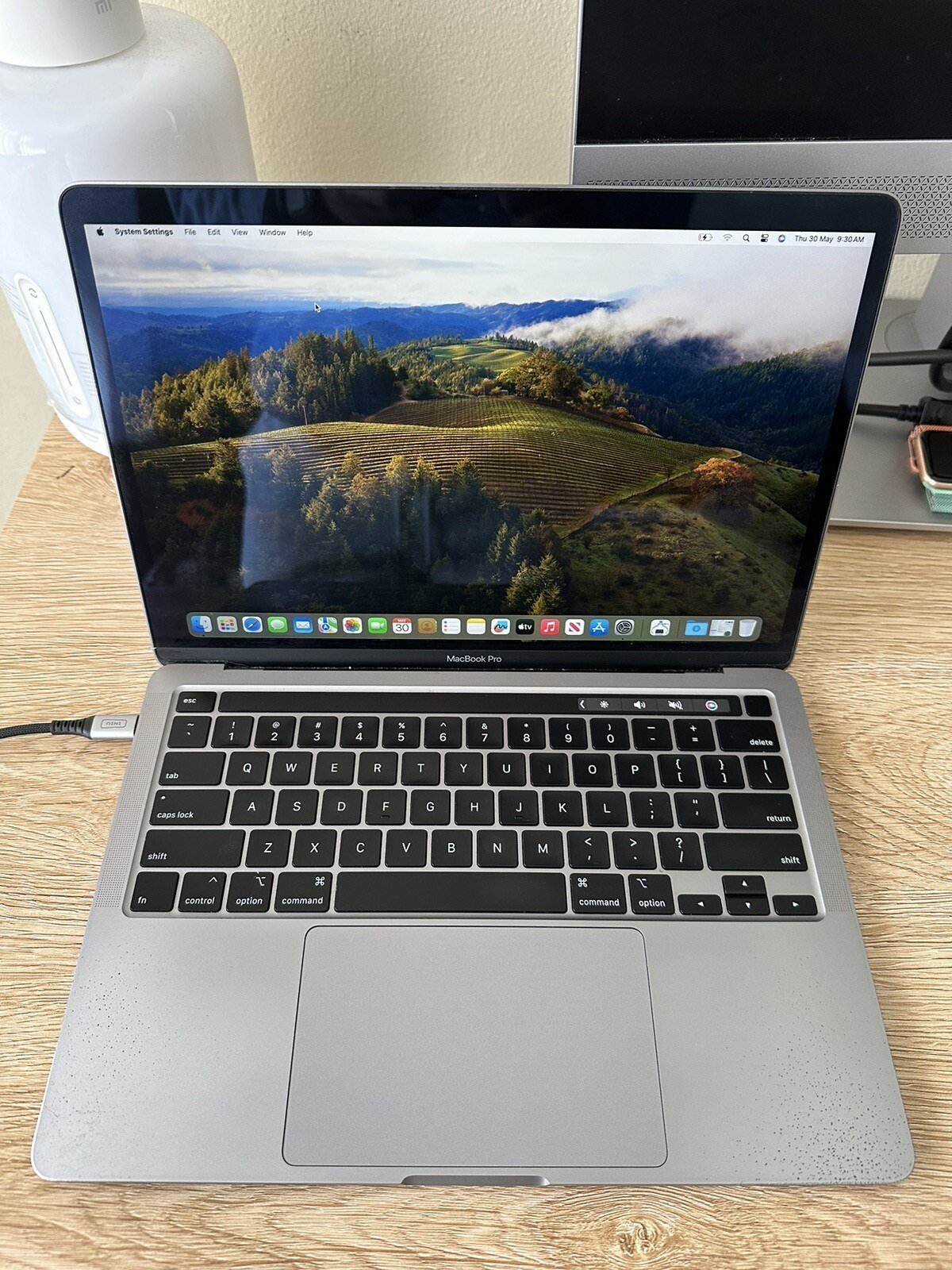
Moving from Windows to a Mac feels like emigrating to a country where the language looks familiar but the street signs sit in different places, and the switchers who settle fastest are the ones who prepare before the new machine arrives. The move looks larger from the outside than it feels from the inside, because the daily work stays the same while the furniture around it changes. Files, photographs and documents all travel across without drama, and the applications most people live in behave much as they always have. What changes is the shape of the desktop, the habits of the hands, and a handful of small rules that catch newcomers out in the opening days. This piece separates what stays from what changes, weighs the machine lineup against real needs, and walks through the move itself, the opening week, the frustrations, and the ways to keep a foot in Windows when one application demands it. Anyone weighing a second-hand machine should also read the advice on buying a used MacBook before spending anything.
What Stays the Same After the Switch
Less changes than a newcomer fears, and naming the constants first takes much of the dread out of the move. Documents, photographs and music travel across in their familiar formats, and the web is the web on either system, with the same sites, the same sign-ins, and the same bookmarks once the browser is signed in. The familiar applications run on the Mac too: browsers, the Office suite, Adobe tools, Zoom and Spotify all have Mac versions, mostly behaving as they do on Windows, so the daily routine of writing, calling and listening barely shifts. Email works in the same way, files open with a double click, and printing follows the same idea even if the menus sit elsewhere. What changes is the layout around the work: the launcher and the Dock take the place of the Start menu, the menu bar along the top takes the place of the taskbar, window controls sit on the left rather than the right, and installing an application usually means dragging it into place rather than running an installer. The Mac leans toward fewer visible choices and more sensible defaults, which can feel restrictive for a week and freeing thereafter. Most switchers feel at home within a few weeks, and the turning point usually arrives when the new gestures stop needing thought. The macOS reference on Wikipedia gives useful background on the system itself for readers who want to understand what sits underneath the new desktop.
The Mac Lineup Weighed Against Real Needs
Choosing a machine starts with honest needs rather than with the brightest model on the table. The Air suits most switchers: silent, light, and able to run a full working day on a single charge, it covers writing, browsing, calls, and light creative work without complaint. The Pro belongs to people who cut video, build software, or run heavy workloads that keep every core busy, and for anyone else its extra muscle sits idle. The Mini is the cheapest desktop entry for someone who already owns a screen and a keyboard, offering the same system in a small box that tucks out of sight. Certified refurbished stock deserves a serious look, since Apple sells returned machines that have been tested and cleaned, carrying a full warranty at a lower outlay than new, and the saving can fund the accessories the switch needs. Memory and storage deserve the most care in the decision, because modern Macs cannot be opened up and upgraded later, so the buyer should choose the size needed in the years ahead, not merely the size that feels enough today. A machine bought too small becomes a daily irritation within a year, while a machine bought with room to grow stays comfortable for far longer. Photograph the old desktop and note how files are organised before the move, since recreating a familiar layout on the new machine makes the opening week far easier. The right choice is rarely the dearest one; it is the one that matches the work the buyer actually does.
Moving Files, Apps and Passwords Across
Preparation decides whether migration day feels like a fresh start or a salvage operation, and the work begins before the new machine arrives. Back up everything from the old computer to an external drive first, because moves can fail often enough that a safety net is wise, and a backup turns a disaster into a short delay. List the essential software and confirm that each one has a Mac version, since a niche business application with no Mac twin is the most common reason a switch stalls. Check peripherals too: printers, scanners and specialist hardware need Mac drivers, and most mainstream ones have them, but a rare device can strand a workflow. Move passwords into a manager that works on both systems, so sign-ins travel across without a frantic hunt through old notebooks. Export browser bookmarks, or simply sign into the same browser on the Mac and let it sync everything across. On migration day itself, the assistant offered during first setup moves files, applications and settings across from the old computer, over the wireless network or by cable, and it does the job remarkably well. A manual copy to an external drive and back is slower, yet it gives a cleaner start free of old clutter, so either route is defensible. Whichever route is chosen, verify afterwards: open the key documents, confirm the photographs arrived, and check that the drive holds the free space expected. Do not wipe the old computer for at least a month; leave it untouched as a safety net while the new habits settle, since a fallback removes the anxiety that makes every small hiccup feel like a mistake.
The First Week: Gestures, Spotlight and the Dock
The opening week rewards a short list of skills mastered at the start, and everything else falls into place from there. To right-click, tap the trackpad with a pair of fingers, or hold the Control key while clicking, and switch it on in settings if it is not already. Closing a window does not quit the application behind it, which surprises every newcomer; the red control merely shuts the window, while quitting outright takes a keyboard command, and the distinction matters because an application left running keeps consuming attention in the background. Installing applications means fetching them from the App Store or dragging them into the Applications folder, and removing one means dragging it to the Trash. Finding files is fastest through the built-in search, opened with a two-key shortcut, which beats hunting through folders by a wide margin. Screenshots come from a three-key shortcut that lets the user drag around the area wanted, and the trackpad gestures are the real prize: two fingers scroll, three fingers swipe between applications, and a pinch zooms, all of which become muscle memory within days. Spend a short while in the system settings learning the gestures properly, since the time pays for itself many times over. The Dock deserves a tidy-up too: drag the icons used daily into place, remove the ones never touched, and the desktop starts to feel like home rather than a borrowed room. By the end of the week, the hands know where to go, and the machine stops feeling foreign.
Where Switchers Stumble and How to Steady Them
Every switch has its friction points, and knowing them in advance turns each one from a shock into a small chore. Managing windows draws the most complaints, since the Mac lacks the snap-to-half-screen habit Windows users rely on, though the built-in stage manager and free third-party tools restore the behaviour well enough. Gaming is the real sacrifice: fewer games run on the Mac, and they run less well, so serious players should keep a console or the old computer for play. The file manager confuses newcomers with its column layout and the lack of a simple cut-and-paste for files, though dragging with a modifier key moves files well enough once the habit forms. Spreadsheet power users occasionally hit gaps in the Mac version of their favourite tool, and the sealed hardware means no memory or storage upgrades later, so buying right the first time matters more here than on any other machine. None of these is fatal, and each has a workaround that costs little, yet knowing them before purchase prevents the regret that follows an impulse buy. The deeper fix for most frustrations is patience: the first week feels clumsy because the hands are relearning, not because the machine is failing, and the clumsiness fades faster than newcomers expect. Keep notes on each small annoyance as it appears, solve one per day, and the list shrinks quickly. A switcher who expects a learning curve enjoys the machine; a switcher who expects instant fluency resents it, and the difference is entirely in the expectation set before the box is opened.
Keeping a Foot in Windows When One App Demands It
Even after moving, some people still need Windows occasionally, and current Macs allow for that in several ways. The simplest option is keeping the old computer for the occasional incompatible application, with remote desktop tools letting the Mac reach it from across the room or across town. For Macs built on Apple silicon, virtualisation software runs Windows inside a window, coping with most office programs well enough for daily use, though it carries a yearly subscription. Cloud services beam a complete Windows desktop to any machine for a recurring charge, which suits someone who needs Windows rarely and dislikes maintaining two machines. The old dual-boot route is gone on Apple silicon machines, so a virtual machine or reaching the old computer remotely are the ways forward, and the Apple silicon reference on Wikipedia explains the chips that made that change. Most movers discover they call on Windows far less often than they expected, but knowing a way back exists takes away the worry that stops people switching at all. The practical rule is to keep the old machine untouched for a month, note each time Windows is actually needed, and then decide whether the need justifies a virtual machine, a cloud desktop, or simply keeping the old box in a corner. Often the list shrinks to nothing, and the old machine can be retired with confidence rather than with a lingering doubt.


